 English
  中文 (中国)
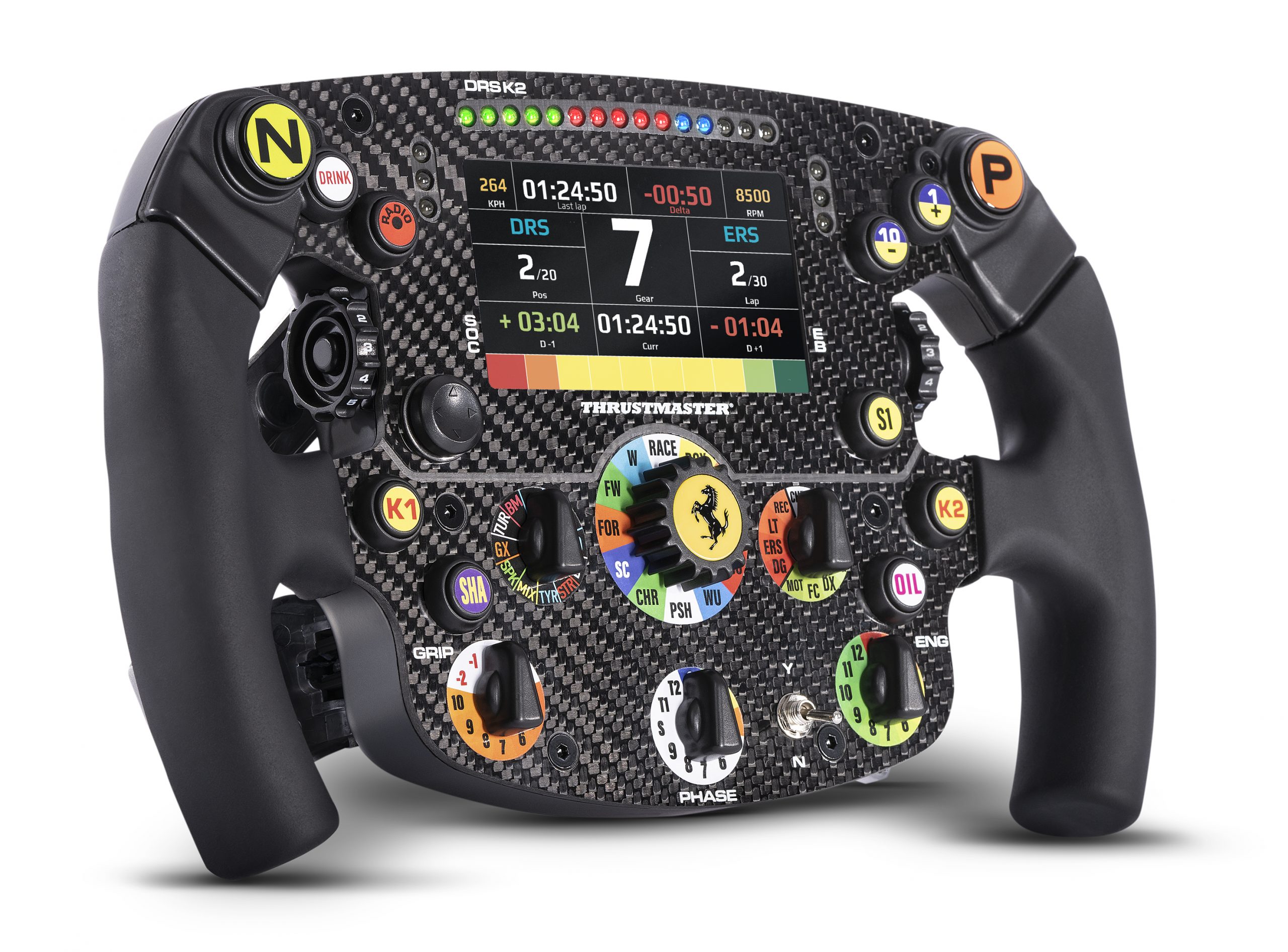
Product: Formula Wheel Add-On Ferrari SF1000 Edition
Platforms:
PC with Windows® 10 or later
Game consoles: PS4™; PlayStation®5; Xbox One™; Xbox Series S™; Xbox Series X™
If your Formula Wheel Add-On Ferrari SF1000 Edition does not power on or is not detected, we recommend following the steps below to test it.
Make sure the Y/N switch is set to the Y position.

1. Check startup calibration
- The Formula Wheel Add-On Ferrari SF1000 Edition must be securely attached to the servo base or the Quick Release adapter (tighten firmly, but do not overtighten).
- Plug the wheel base power supply directly into a wall outlet. Avoid using extension cords or power strips.
- Connect the wheel base USB cable directly to a USB port on the PC or console. Avoid using USB extensions or USB hubs.
For a Direct Drive wheel base (T818, T598):
- Direct Drive wheel bases do not perform calibration at startup. This is normal.
- The Ferrari SF1000 LCD screen will display the Thrustmaster logo, followed by the Ferrari logo.
For a force feedback wheel base (T300, TX, T-GT, T-GT II, TS-XW, TS-PC):
- The wheel should rotate counterclockwise, then clockwise, and finally return to the center position.
- The Ferrari SF1000 LCD screen will display the Thrustmaster logo, followed by the Ferrari logo.
Important: The Ferrari SF1000 LEDs will only light up while you are in-game.
1.1 If your Ferrari SF1000 screen does not display anything, but the wheel base powers on (indicator LED is on for a Direct Drive base, or normal calibration occurs for an FFB base):
Please follow the next section of this article to test your Ferrari SF1000 without using the servo base.
1.2 If the wheel base does not power on (no LEDs on the base), or if an FFB wheel base shows no calibration or abnormal calibration:
Please refer to your servo base support page on our technical support website. You will find troubleshooting steps for a wheel that is not detected or does not power on.
If the issue with your wheel base is confirmed, please contact Thrustmaster Technical Support and specify your servo base model.
2. Test the power of your Ferrari SF1000
- Detach the Ferrari SF1000 from the base
- Unscrew the paddle module
- Connect the Ferrari SF1000 directly to a USB port on a PC* running Windows® 10 or later using its USB-C / USB-A cable
- If you do not have a PC, you may connect the Ferrari SF1000 to a USB port on a PlayStation or Xbox console**
* Direct connection of the Formula Wheel Add-On Ferrari SF1000 Edition to a PC only provides power and allows firmware updates. No other functionality will be available.
** Direct connection of the Formula Wheel Add-On Ferrari SF1000 Edition to a console only provides power. No other functionality will be available.
The Ferrari SF1000 LEDs should light up.
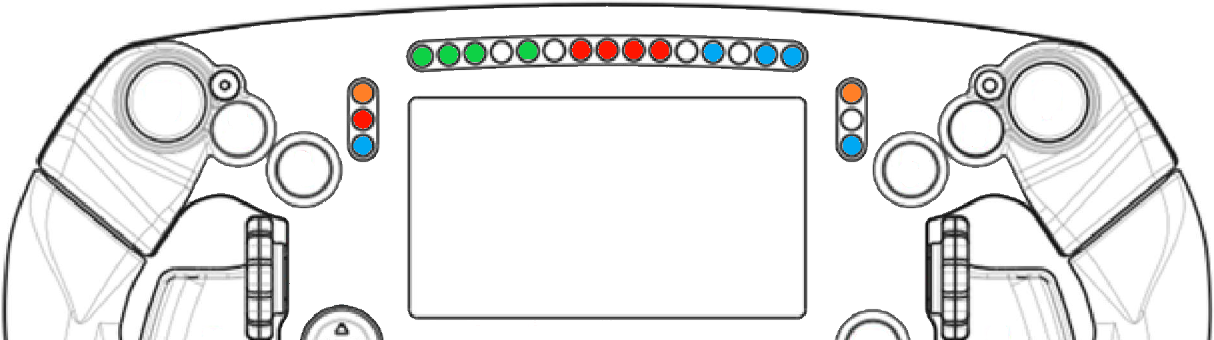
Note: Some LEDs may remain off. This is normal.
2.1 If the Ferrari SF1000 LEDs light up
Your Ferrari SF1000 is receiving power correctly. We recommend checking all connections to your servo base and carefully reviewing the startup calibration guidelines above.
If your Ferrari SF1000 still does not power on when connected to your servo base, please contact Thrustmaster Technical Support and specify your servo base model.
2.2 If the Ferrari SF1000 LEDs do not light up
Your Ferrari SF1000 firmware may be missing or corrupted. You can attempt to restore it using the wake-up (Bootloader) procedure:
- If you are using your Ferrari SF1000 with a Direct Drive wheel base: wake-up method using My Thrustmaster Panel
- If you are using your Ferrari SF1000 with an FFB wheel base: wake-up method using Firmware Updater