 English
  中文 (中国)
Product: Formula Wheel Add-On Ferrari SF1000 Edition
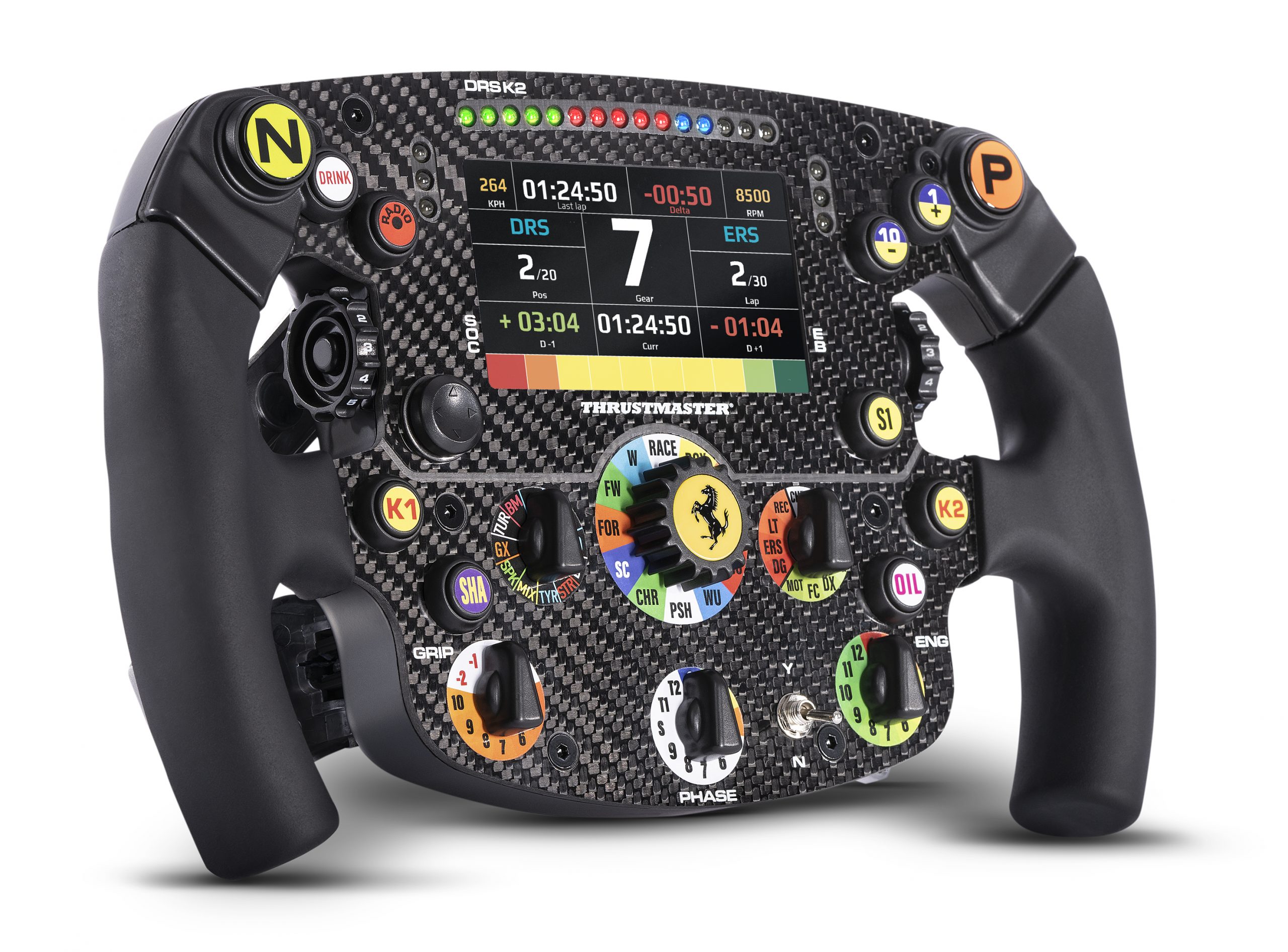
System requirements: PC running Windows® 10/11 or later.
In this article, we outline the procedure to follow if your Formula Wheel Add-On Ferrari SF1000 Edition does not power on.
Important notice This article applies only to the Ferrari SF1000 used with an FFB racing wheel base (T300, TX, T-GT, T-GT II, TS-XW, TS-PC). If you are using a Direct Drive racing wheel base, click here
The Bootloader procedure should only be used when the Ferrari SF1000 is completely inactive (LCD screen does not start, LEDs do not light up, no buttons respond). |
1. Make sure you have installed the latest version of the “PC - DRIVERS FORCE FEEDBACK” driver.
If necessary, you can find your device’s driver on our website, in the “Drivers” section.
Note: This is the same driver used for Thrustmaster force feedback racing wheels.
Restart your PC to validate the installation.
2. Prepare your Formula Wheel Add-On Ferrari SF1000 Edition for connection
Important: the Formula Wheel Add-On Ferrari SF1000 Edition must be detached from your wheel’s servo base.
Unscrew and remove the paddle shifters from the back of the Ferrari SF1000.
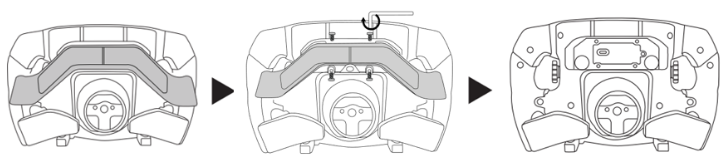
Connect the USB cable to the USB-C port of the Ferrari SF1000.
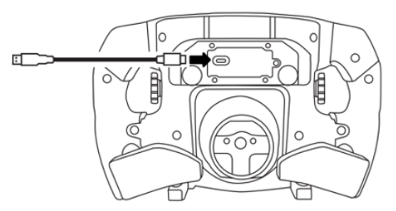
Wait before connecting the Ferrari SF1000 to the PC.
3. Press and hold buttons 10- and 1+
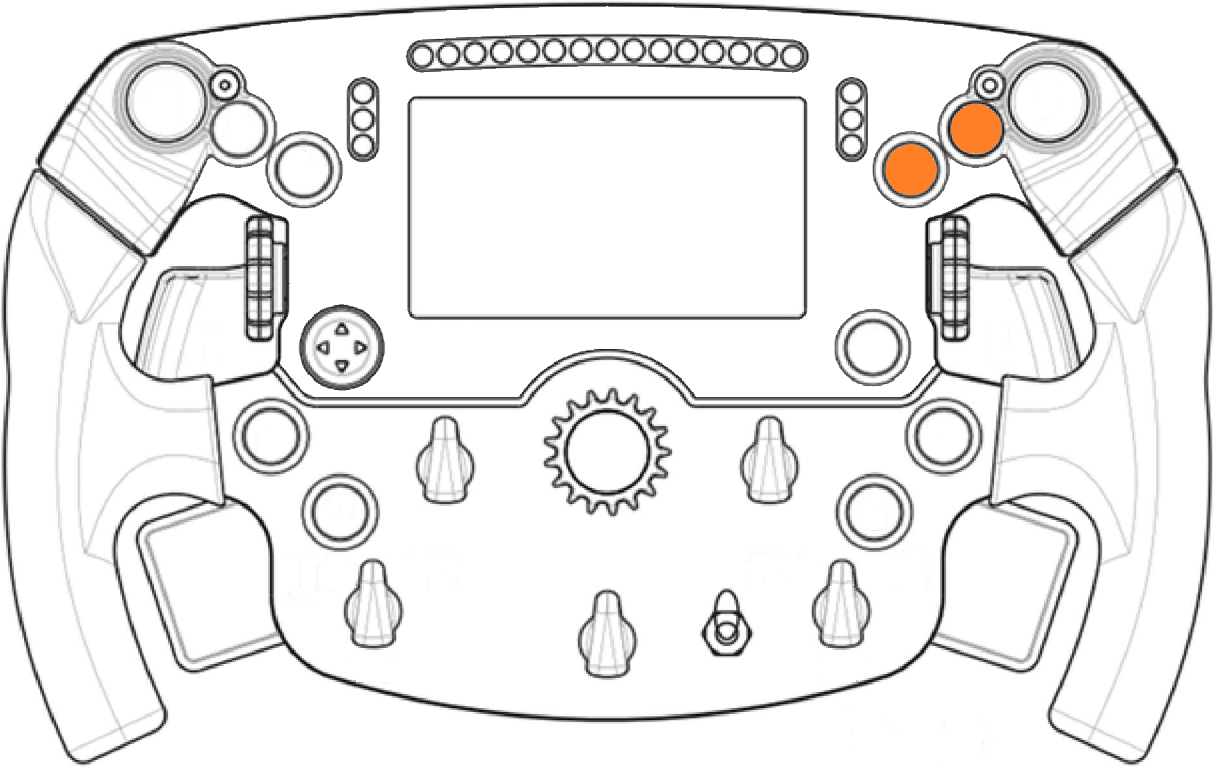
4. Connect your Ferrari SF1000 to a USB port on the PC while holding buttons 10- and 1+
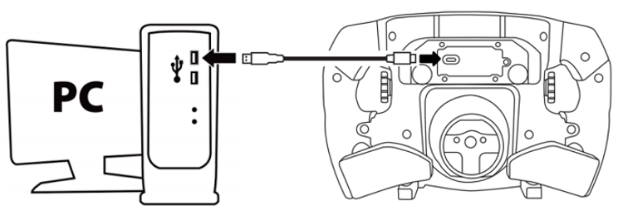
As soon as the Ferrari SF1000 is connected to the PC, wait 5 seconds, then release buttons 10- and 1+.
The red and orange LEDs on the Ferrari SF1000 should light up.
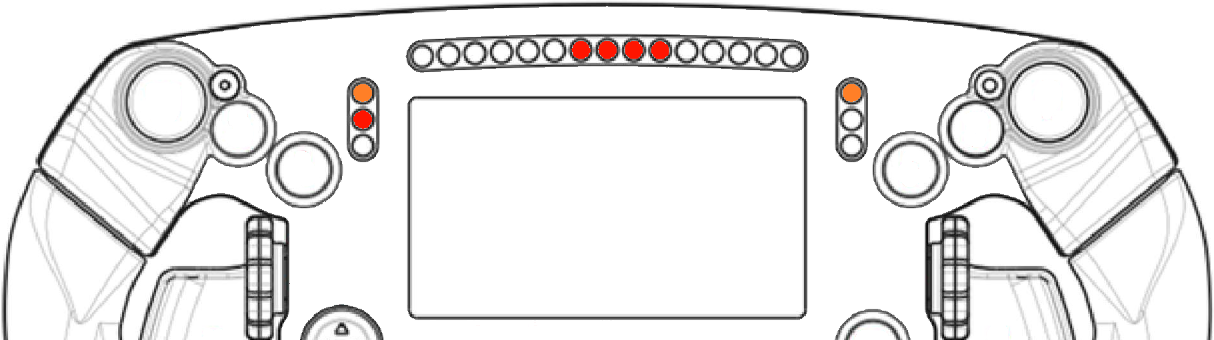
If the red and orange LEDs do not light up, disconnect the Ferrari SF1000 and try again while pressing the 10- and 1+ buttons firmly.
You can also try a different USB port on your PC.
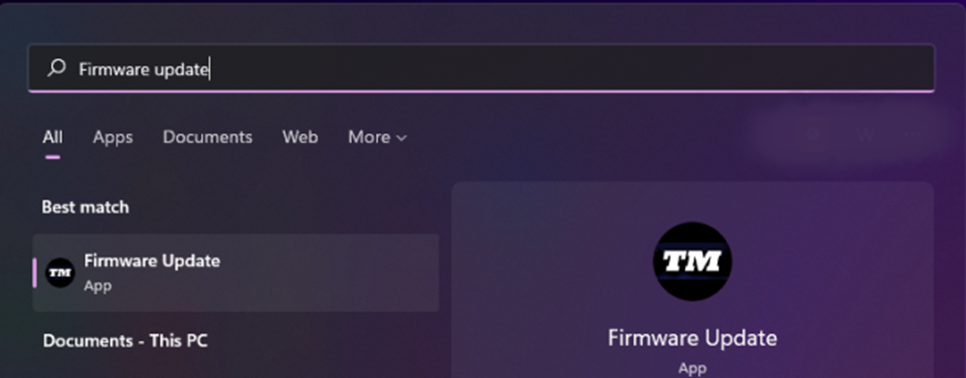
5. Open the Firmware Updater program
Click the Windows search icon located in your PC’s taskbar, type “Firmware Update”, then click to open the application.
The “Thrustmaster – Firmware Updater” window will appear on screen:
- Device: shows the Ferrari SF1000 in [Boot] mode
- Firmware: indicates the firmware version that will be applied to the device
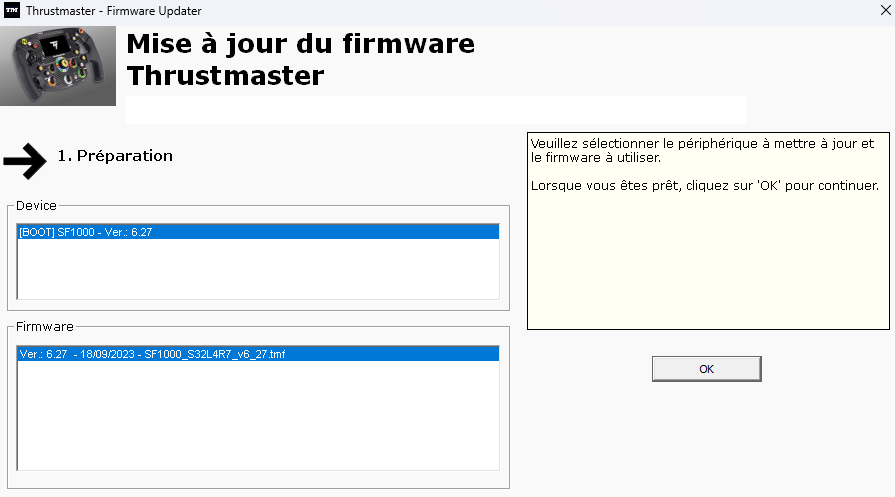
6. Click OK to perform the firmware update
Wait while the firmware loads and DO NOT DISCONNECT the USB connectors from either the Formula Wheel Add-On Ferrari SF1000 Edition or the PC.
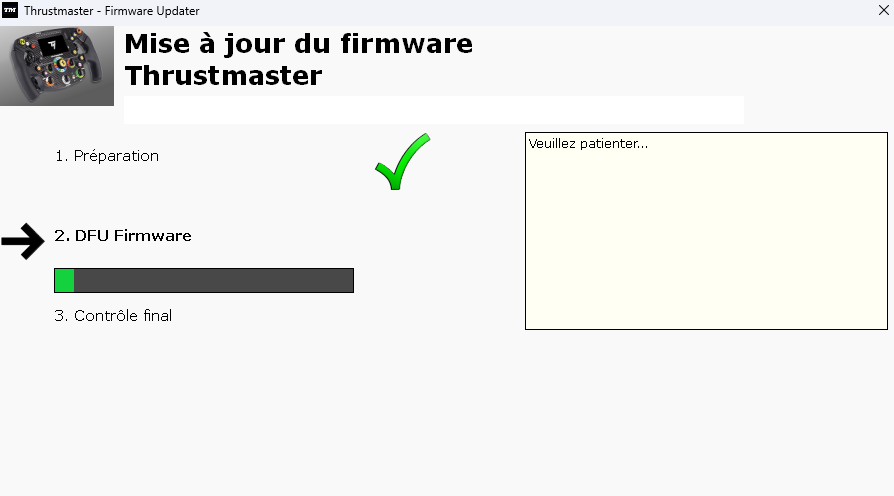
As soon as prompted by the application, disconnect and reconnect your Formula Wheel Add-On Ferrari SF1000 Edition to complete the update.
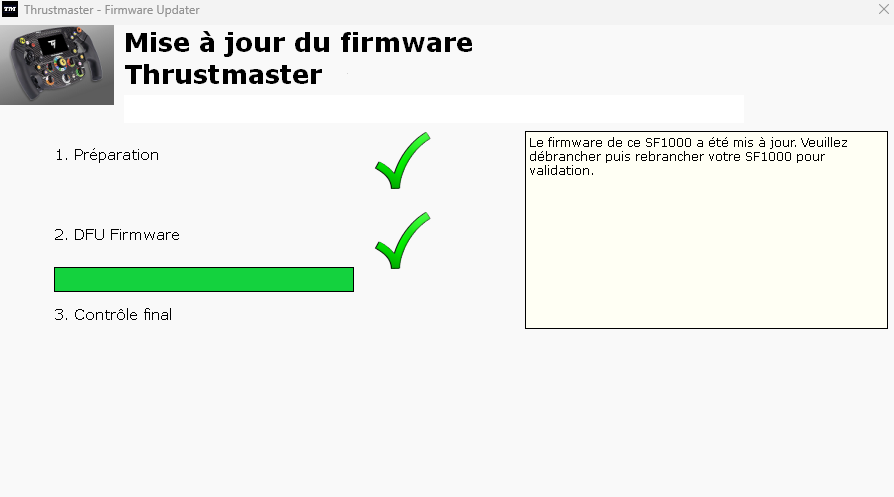
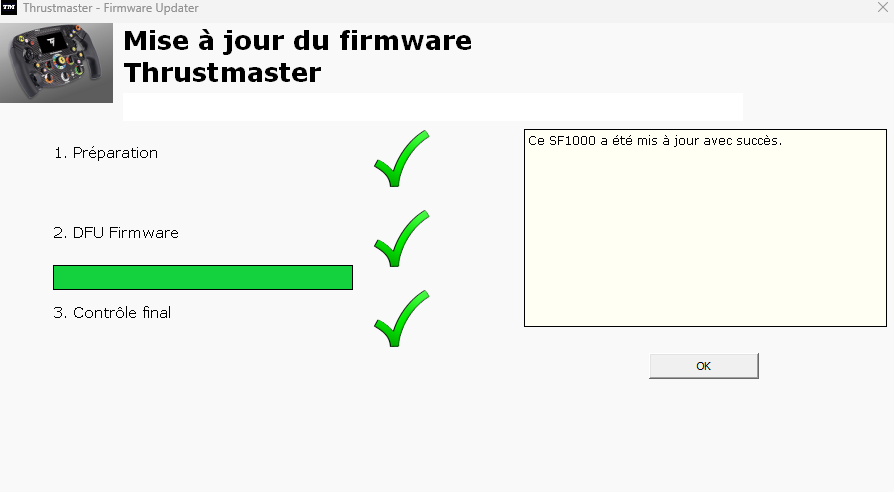
The program will indicate whether the update was successful.
The LEDs should light up again.
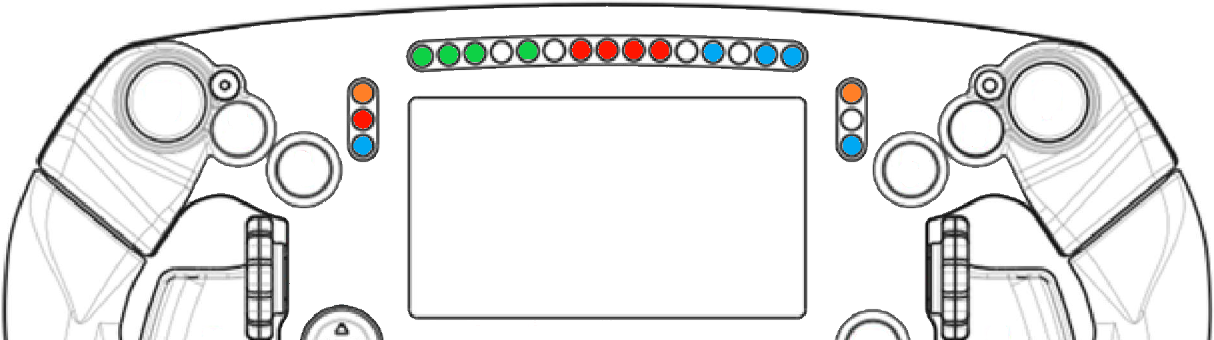
Note: some LEDs may remain off, this is normal.
7. Wake-up procedure complete
Click OK and close the Firmware Updater program.
If the procedure did not wake up your Ferrari SF1000:
- If possible, try the procedure on another PC
- Try another USB-C / USB-A cable